Docs
Using CandidCue
Install CandidCue, write a script, start a take and fix the common problems.
Install
Get the installer for your computer from the download section. CandidCue is free, and there is no account to create.
macOS
macOS 12 or later · Apple Silicon or Intel
Open the .dmg and drag CandidCue to Applications. It is signed and notarised,
so it opens like any other app.
Windows
Windows 11, 64-bit · Windows 10 should work but is not tested
Run the setup .exe. It installs for your user account only.
Windows asks first
The installer is not code-signed yet, so SmartScreen shows a warning. Choose More info, then Run anyway.
Linux
64-bit, Ubuntu 22.04 or newer · WebKitGTK 4.1
There are two downloads. The .AppImage runs on its own and updates itself: make
it executable, then run it.
chmod +x CandidCue_*.AppImage
./CandidCue_*.AppImage
Or install the .deb:
sudo apt install ./CandidCue_*.debA .deb can't replace itself, so when there is a new version CandidCue
offers a download instead, and you install the new .deb the same way.
First run
The first time CandidCue opens, the Welcome screen offers three ways in: Create your first script, Open the sample script or Import Markdown.
Beside them, Before your first take lists your Microphone, Teleprompter screen and Speech language. It is optional: you can write and import scripts without any of it.
Start with the sample script
Once the speech model is installed, open it and read it aloud. It tells you what to watch for as you go.
The speech model
Voice following needs a one-time download. Writing works without it.
The English speech model is about 128 MB, and it is downloaded only when you choose to install it: from the Welcome screen or Settings › Speech. CandidCue checks the download against a pinned SHA-256, and you can keep writing while it runs.
Your microphone
In Settings › Audio, choose Allow and choose microphone (macOS asks for permission once). Pick your input, speak, and watch the level meter move. Then choose Test transcription and say a sentence to check your words come through.
Writing a script
A script is a Markdown file. Write it the way you'll say it, divide it with headings, and add a few extras for the glass. The Insert menu adds cues and part breaks for you.
Spring launch.md
Markdown
[Take: Opening]

# A calm start

[Cue: look at the lens] Hello, and welcome back. [Beat]

Today I'll show you how the API{say="A P I"} copes with a **slow** connection.

:::silent
Cut to the screen recording here.
:::

[Take: Demo]

Here is the simplest case. [Pause] Watch the top line.
| Syntax | What it does |
|---|---|
# Heading | Starts a section. On the glass it is a quiet label. |
[Cue: look at the lens] | A note to you on the glass. Never spoken or followed. |
[Pause][Beat][Breathe] | Short markers on the glass. Following moves past them. |
[Take: Opening] | A part break. The Present menu can start each part on its own. |
API{say="A P I"} | Shows the word and follows the spoken form. The quotes must be double quotes. |
:::silent … ::: | Shown quietly, set apart, and never followed. |
:::stage … ::: | Stage notes. A table, image or code inside one stays in full during a take. |
**bold***italic*- list> quote | Read like any other text. |
`code` | Shown as code, but not spoken. |
<!-- comment --> | A note in the source. It appears nowhere. |
Outside a :::stage block, images, tables and code become a one-line cue in a
teleprompter take; a reading window shows them in full. In the app, Help › Script Syntax Reference
has every form with an example.
Presenting
Press Present (⌘↩ on macOS, CtrlEnter on Windows and Linux) to start a take. It opens in one of two ways, set in Settings › Prompter display and rigs:
- Teleprompter
- Fills the display you pinned, above everything else, for reading off glass. It can be mirrored for a beam splitter.
- Reading window
- Stays a window you can size and move, for a laptop and webcam. It is never mirrored.
During a take, ⌃⌘F (F11 on Windows and Linux) switches between them.
Set up the prompter display
In Settings › Prompter display and rigs, choose the display behind the glass. Identify displays puts a number on each screen so you can tell them apart, and the horizontal and vertical mirror switches are there too.
CandidCue sizes the type for viewing distance rather than pixels, and it knows the Elgato Prompter and Prompter XL. For any other rig there is an optional calibration, which starts from a preset: Reading at a desk, Desk and webcam, Elgato Prompter, Elgato Prompter XL, Studio glass rig or iPad rig.
Choose where to start
The Present button's menu starts a take From beginning, From here (where your cursor is), From last ending, or from any one part of the script.
Practise
Practise (⇧⌘↩, or CtrlShiftEnter) is a rehearsal in a reading window. Voice following runs as usual, and nothing is reported at the end.
During a take
The words behind you dim, the line you're on sits between the two markers in the margins, and the words ahead wait for you. The text moves when CandidCue is sure it has found your place. When it isn't sure, it holds.
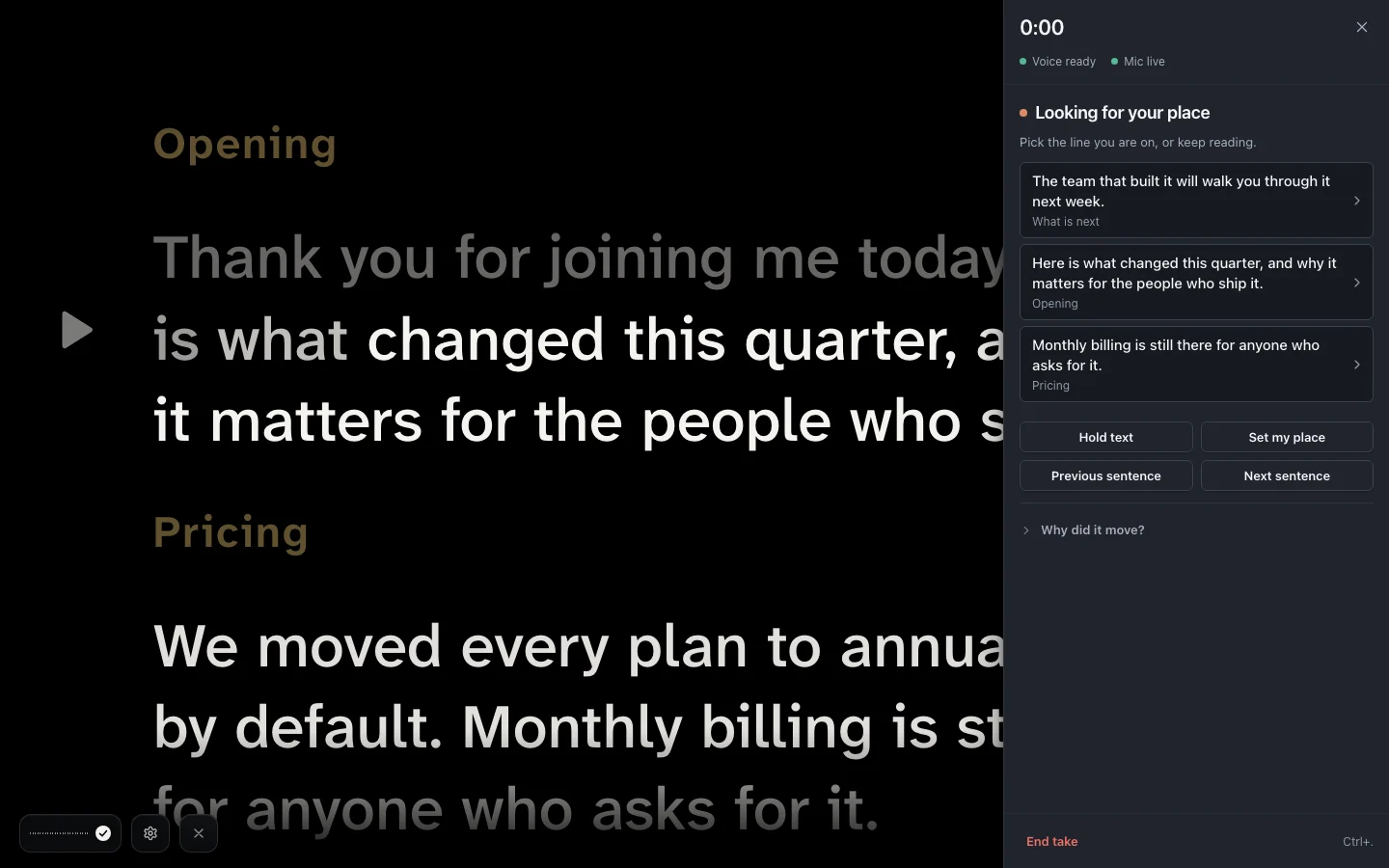
If it holds, the Take controls offer nearby lines to pick from, with Set my place, Previous sentence and Next sentence. Recognition is probabilistic. It makes mistakes, and the prompter is built to trail you rather than guess ahead when it is unsure.
Keyboard shortcuts
| Action | macOS | Windows and Linux |
|---|---|---|
| Start, pause or resume | Space | |
| Blank stage | B | |
| Hard pause (microphone off) | ⇧⌘Space | CtrlShiftSpace |
| Auto-scroll on or off | A | |
| Auto-scroll slower / faster | [/] | |
| Mirror stage | ⇧⌘M | CtrlShiftM |
| Switch between reading window and teleprompter | ⌃⌘F | F11 |
| Move the script one line | ↑/↓ | |
| Previous / next sentence | ⌥←/⌥→ | Alt←/Alt→ |
| Previous / next section | ⌥↑/⌥↓ | Alt↑/Alt↓ |
| Larger / smaller stage text Unless the display sizes its own text | ⌘+/⌘− | Ctrl+/Ctrl− |
| End take | ⌘. | Ctrl. |
| End the take and close the stage | EscthenEsc | |
Your files and updates
Every script is a Markdown file on your own disk, with a revision history you can browse and restore. Settings › Data, privacy & updates has Export all data, which copies your scripts with their revisions and images, your settings and the database to a folder you choose, and Restore from export… to bring them back.
Where your data lives
- macOS
~/Library/Application Support/com.candidcue.app- Windows
%APPDATA%\com.candidcue.app- Linux
~/.local/share/com.candidcue.app
Updates
CandidCue checks updates.candidcue.com for a newer version shortly after it opens and every six hours, unless you turn that off, and installs one only when you choose to, never during a take.
When there is one, a notice in the corner of the window offers Install and Restart or Later. Every update is signed and checked before it is installed, and updating never touches your scripts, settings or the speech model.
To stop the check, turn off Check for updates automatically in Settings › Data, privacy & updates. Help › Check for Updates… checks whenever you ask. How updates work.
Your voice stays here
Speech recognition and following run on your computer. CandidCue does not upload your microphone audio or your scripts. The network inventory lists every network path in the app.
Troubleshooting
CandidCue can't use the microphone
- macOS: open System Settings › Privacy & Security › Microphone, turn on CandidCue, then choose Try again. If it is already on, quit and reopen CandidCue.
- Windows: in Settings › Privacy & security › Microphone, turn on “Let apps access your microphone” and “Let desktop apps access your microphone”, then choose Try again.
- Linux: allow CandidCue in your system settings, then choose Try again. If it is already allowed, check the microphone is connected and not in use by another app.
The speech model is damaged
Settings › Speech says so when its files are damaged. Download it again from there to restore voice following. Writing works without it in the meantime.
The prompter display isn't connected
Until the display you pinned is back, takes open on your current monitor. Reconnect it, or choose another in Settings › Prompter display and rigs.
It isn't following me
Check that the speech model is installed (Settings › Speech) and that the level meter moves when you speak (Settings › Audio). Voice following works in English. During a take, choose Set my place or use the arrow keys to move the script yourself, or press A to turn on auto-scroll.
Getting help
Help › Report a Problem opens a new issue on GitHub. If you're asked for more detail, Help › Export Support Bundle… saves one; it is also under Diagnostics in Settings › Data, privacy & updates. Support bundles are created only when you ask for one, and go only where you send them.
Read a bundle before you send it
A bundle is designed to leave out your scripts, transcripts and microphone audio, but CandidCue can't recognise prose in a log line.